
Quick start
The nine steps of the in-app tour, with the how and the why behind each one.
The first time you open RasterFX, a short tour plays through the real engine: nine steps, about a minute. This page follows the same nine steps. The tour shows you where things are. Here I explain how to use them, and why they work the way they do.
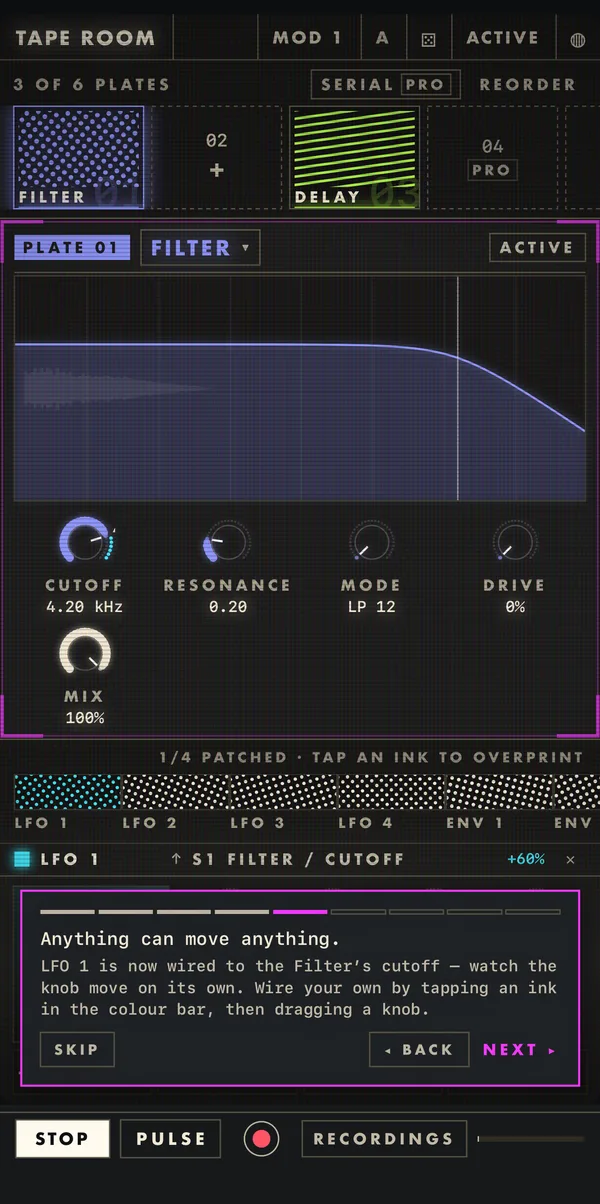
The first card is silent on purpose. Sound starts on the next one, so check your volume first. You can go back or skip at any point. If you skip, RasterFX still sets up the patch the tour would have built, so nothing is missing when you start playing.
The tour starts a dry pulse so you can hear what each plate does to it. PLAY and STOP start and stop the input. Tap PULSE to pick another one:
NOISE,TONEandPULSEare built in. They are handy for trying a patch without plugging anything in.FILEplays an audio file from Files. Long files are trimmed, and RasterFX tells you how many seconds it kept.MICuses the microphone or the audio input you have connected. iOS asks for permission the first time. The built-in mic into the built-in speaker will feed back, so connect headphones.SILENCEstops the input.
The input sources belong to the app. As a plug-in, RasterFX processes whatever your host sends it.
A plate is one effect slot. Tap an empty plate to load an effect into it. To swap an effect, tap its name next to the plate number. Every plate draws what it is doing to the signal, and each has its own MIX knob and an ACTIVE switch to bypass it.
FilterDelayDriveReverbGrainRepeatMotionDynamics
The free version edits the first three plates. Plates 04 to 06 are part of Pro, but a patch that already uses them plays in full on the free version too. See Free and Pro.
Sound goes through the plates in order, from 01 onward, so the order is part of the sound. A Delay after a Filter echoes the muffled sound. A Filter after a Delay muffles the echoes too. Tap REORDER, then drag the plates to change the order.
SERIAL above the plates is the routing. With Pro you can switch it to Split A|B: plates 01 to 03 and plates 04 to 06 each take the same input side by side, and their outputs are added together.
Modulation is the heart of RasterFX. Each modulation source is an ink in the colour bar: four LFOs, two envelopes, a random source, two step sequencers, two Lorenz chaos sources, two drunk walks, device tilt, the eight macros, the four throws, the XY pad and, in a host, MIDI. That is 36 sources in all. To wire one:
- Tap
MODin the top bar to open the colour bar. - Tap an ink, for example
LFO 1. The knobs it can move light up, and the ink's own settings (an LFO'sRATE,SHAPEandSYNC) appear under the bar. - Drag a knob up for a positive amount, or down for a negative one. Cyan arcs are positive, red arcs are negative. Drag it back to zero to remove the line.
- Tap
MODagain to close the colour bar.
Every line is listed under the colour bar with its amount. Tap ✕ to remove one. The free version has four lines and Pro has sixteen. Lines that are already in a patch always play, and you can always adjust or remove them.
The XY pad is two modulation sources, XY · X and XY · Y. Wire them like any other ink, then drag inside the pad to move everything they reach at once.
With Pro, the corners hold whole patches. Long-press a corner label, A to D, to store the current sound there. Tap a label to jump to it. Once corners are set, the pad reads XY · MORPH and dragging blends between the four. Knobs blend fine, but a switch can't be 37% Tape, so modes and routing flip to whichever corner you're closest to. A patch that already has corners morphs on the free version too.
The four throw pads, T1 to T4, are momentary. Hold one and whatever it is wired to moves; let go and it springs back. Wire them from the colour bar like any ink.
M1 to M8 are macros. A macro does nothing until you wire it, so a blank macro that changes nothing is working as intended. Tap its ink in the colour bar and drag a knob, exactly as with an LFO. One macro can move several knobs, each with its own amount.
The round red button records whatever you're hearing. Tap it again to stop. Every take lands in RECORDINGS. More in Recording.
The dice in the top bar builds a whole new patch with one tap. If you liked what you had better, tap Undo roll while it shows. Input and output levels never take part in a roll.
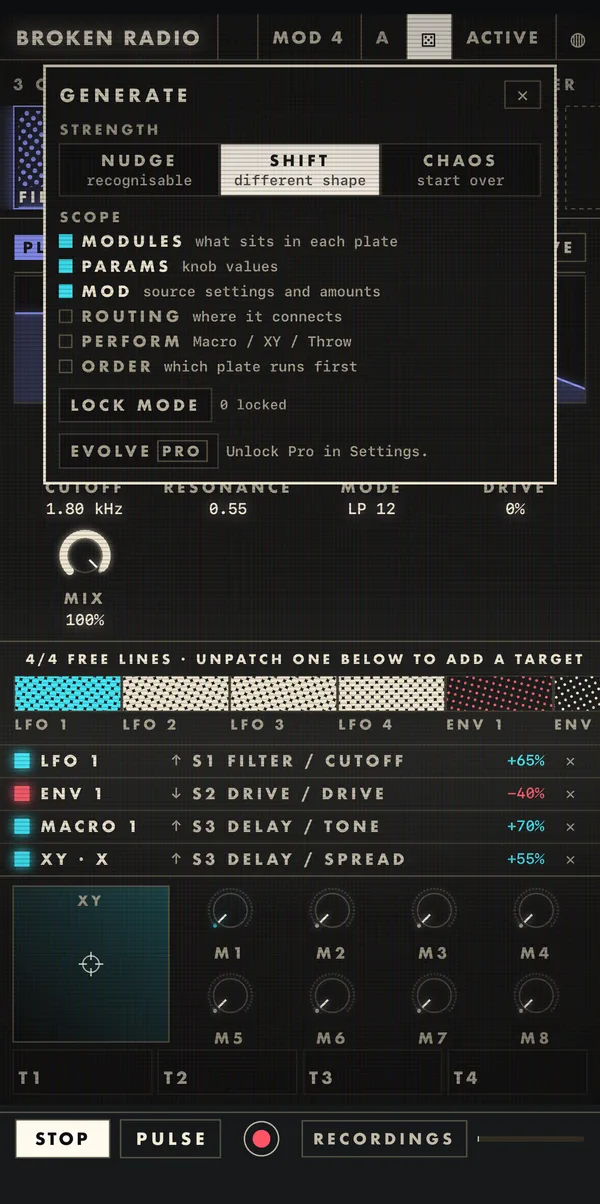
Hold the dice instead to open GENERATE:
- Strength.
NUDGEkeeps it recognisable,SHIFTgives it a different shape, andCHAOSstarts over. - Scope picks what a roll may change:
MODULES,PARAMS,MOD,ROUTING,PERFORM(macros, XY and throws) andORDER. LOCK MODE: turn it on, then tap knobs to lock them. Locked knobs keep their values on the next roll.Unlock allclears them.EVOLVE(Pro) lets parameters drift slowly on their own, with its own rate, depth and scope.- Rolls lists your recent rolls. Tap one to go back to it; long-press to mark it as a favourite.
Related
Still stuck? Write to zhi@nonoaudio.com. Support page