
Library & Projects
Save, load, rename, and manage projects and factory Kits from the unified Library.
The Library is the single place where you save your work, load factory Kits, and manage every project you've made. It opens as a full-screen sheet over the Pad Grid.
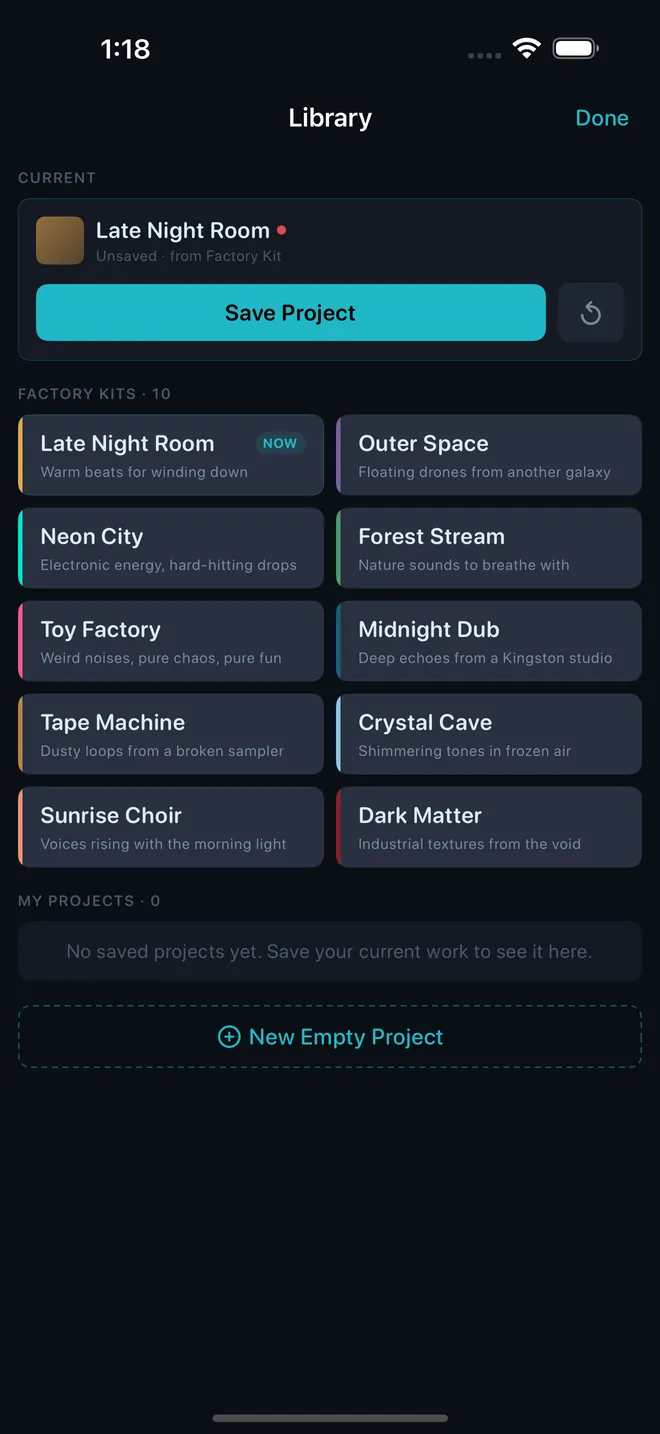
Tap the project name in the centre of the top toolbar — the title with the small chevron beside it. A red dot next to the name means the current project has unsaved changes. The Library opens with three sections stacked top to bottom: Current, Factory Kits, and My Projects.
Tap Done in the top right to close the Library without making a change.
The Current section at the top shows what's loaded right now: its name, a coloured swatch, and a status line such as Saved, Unsaved changes, Untitled draft, or Unsaved · from Factory Kit.
| Control | What it does |
|---|---|
| Save Project | Saves the current state. A named project is overwritten in place; an untitled draft or a Kit-derived project prompts you to name it first. |
| Revert (circular arrow) | Appears only when you're working from a Factory Kit. Discards your edits and restores the original Kit. |
The Factory Kits section lists the built-in starter Kits that ship with GranSample. Tap any Kit card to load it; the active Kit is marked NOW. Each card shows the Kit's name and a short subtitle, with a coloured accent stripe.
Factory Kits are a great starting point. For a tour of what they contain and how first launch loads one, see First Launch & Factory Kits.
Everything you've saved appears under My Projects, sorted with the most recently modified first. Each row shows the project name and its last-modified date; projects forked from a Kit also show their lineage (for example, Yesterday · from Late Night Room).
Tap a project row to load it. If your current work has unsaved changes, GranSample asks whether to Save & Load, Discard & Load, or Cancel first, so you never lose edits by accident.
Tap the ⋯ (ellipsis) button on a project row for its menu:
| Action | What it does |
|---|---|
| Rename | Opens a dialog to type a new name. |
| Duplicate | Makes an independent copy of the project. |
| Share Kit… | Exports the project as a .gskit file to share. This is a Pro feature; on the free tier the menu shows a lock and tapping it opens the paywall. |
| Delete | Removes the project after a confirmation. This cannot be undone. |
For everything about packaging and importing shared Kits, see Sharing Kits (.gskit).
Tap New Empty Project at the bottom of the Library to start from a clean slate. If the current project has unsaved changes, GranSample first offers to Save & New, Discard & New, or Cancel. The new project clears all pads and is named New Project until you save it.
Still stuck? Write to zhi@nonoaudio.com. Support page