
Your first chart
Open a song, press play, loop the hard part and slow it down. Then bring your own charts in.
Leganote is a songbook you can practise with. The first time you open it, two short welcome pages say what it does and how to bring your songs; Get Started takes you to the library, which already holds public-domain starter songs.
Here is the short path from there to playing along:
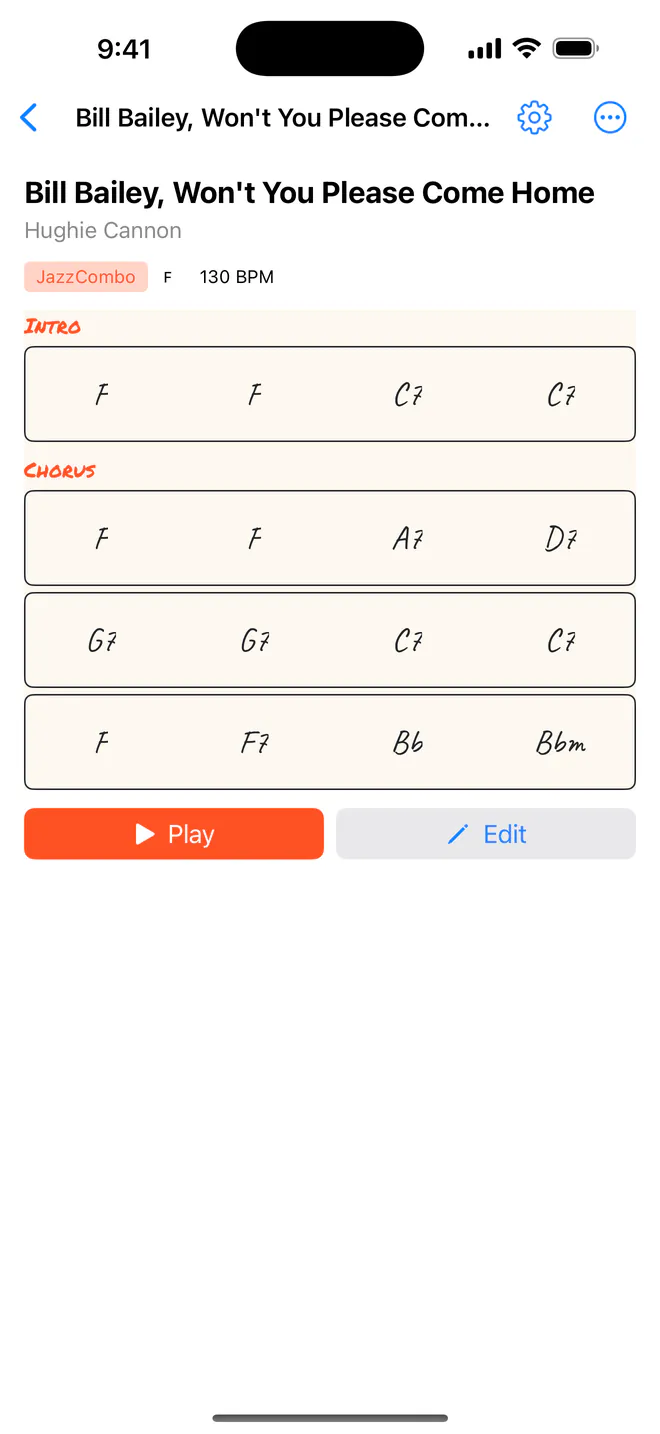
Open a song. Tap Amazing Grace, When the Saints Go Marching In or Maple Leaf Rag. The song page shows its key, tempo and the chart, with
PlayandEditunderneath.Press
Play. The player opens on the chart. Tap the play button and drums, bass, piano and guitar come in at the song's tempo. The bar that's playing lights up in flame.Loop the hard part. Tap the loop button to loop the whole song. Press and hold it and choose
Customize range…to loop just a few bars.Slow it down. Tap the BPM chip under the transport and take it down 10 or 5 at a time, or drag the slider.
Bring your own. Back in the library, tap
+to import a ChordPro file or a PDF, or start aNew Song. In the free version the three free starter songs already fill the library, so delete one first, or unlock Pro.
- Library — every song, with search at the top. See Your library.
- Song page — the chart preview,
Play,Edit, and the•••menu for exporting. - Player — the chart, fingering diagrams, the transport and the mixer. See Play along.
- Editor — sections, bars and chords. See Write a chart.
- Settings — the gear at the top right of a song page. See Settings.
Your songs are saved in a Leganote folder in your own iCloud Drive, so they show up on your other iPhone, iPad and Mac too. There's no account to make. More in iCloud and your files.
Related
- Play alongThe chart, a backing band, fingering diagrams for this chord and the next, and a mixer. Tap a bar to jump there.
- Write a chartSections, bars and chords: tap a bar, build the chord, save. Changing the key moves every chord with it.
- Your libraryEvery song in one list: search by title, composer or chords, sort it, star your favourites.
Still stuck? Write to zhi@nonoaudio.com. Support page