
Fingering diagrams
Guitar, piano, bass and ukulele shapes for the chord you're on and the one coming next. Pick the voicing you play.
Under the chart, the player shows two diagrams side by side: Now, the chord that's playing, and Next, the one coming up, so your hand can get there in time. The tabs under them switch the instrument. On iPad and Mac each bar of the chart also carries a small diagram of its own.
Guitar- Standard tuning, with barres drawn across the strings. Pro.
Piano- The chord's keys marked on a small keyboard. Pro.
Bass- Four strings. Free.
Ukulele- G, C, E, A, with the high G. Free.
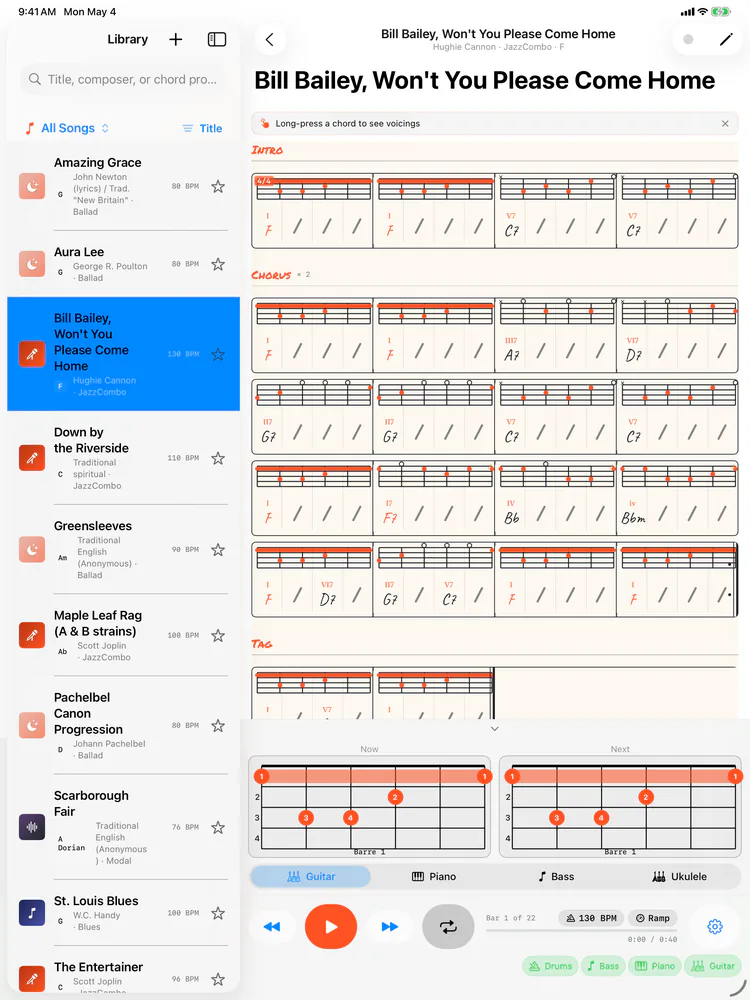
There's more than one way to play most chords. Press and hold a chord on the chart (right-click it on the Mac and choose Voicings for…) to see the others for the instrument you're on, and tap the one you play. Leganote keeps your choice with the song, for that chord and that instrument, so it's there next time.
Show fingering diagrams and Instrument are in Settings; on the Mac the switch is also in View ▸ Show Fingering Diagrams. One instrument drives both the chart and the Now and Next diagrams. The free version starts on bass.
Related
- Play alongThe chart, a backing band, fingering diagrams for this chord and the next, and a mixer. Tap a bar to jump there.
- SettingsLight or dark, the app's language, fingering diagrams, Pro, and the welcome pages again.
- Free and ProWhat's free, what the one-time Pro unlock adds on iPhone and iPad, and how the Mac app fits in.
Still stuck? Write to zhi@nonoaudio.com. Support page