
Write a chart
Sections, bars and chords: tap a bar, build the chord, save. Changing the key moves every chord with it.
Open a song and tap Edit, or tap the pencil in the player. To start from nothing, tap + in the library and choose New Song: a title is the only thing it needs, and you can set the composer, key, time (4/4 or 3/4), tempo and style there too, then tap Create. Without Pro the free starter songs already fill the library, so delete one first to make room.
On iPad and Mac the editor has four parts: the song details along the top (Title, Composer, Key, Time, Tempo, Style), the SECTIONS sidebar on the left, the chart in the middle, and the bar editor docked underneath. On iPhone the chart fills the screen: pick the section from the menu in the title bar, open the song details and the section list from the ⓘ button, and the bar editor slides up when you tap a bar.
In the sidebar, Add Section adds the next one, and each section shows how many bars it has. + Bar adds a bar to it, the − and + pill sets how many times it repeats (×1 to ×8), and the bin deletes it after asking. Double-tap a name to rename it, and drag a section to move it.
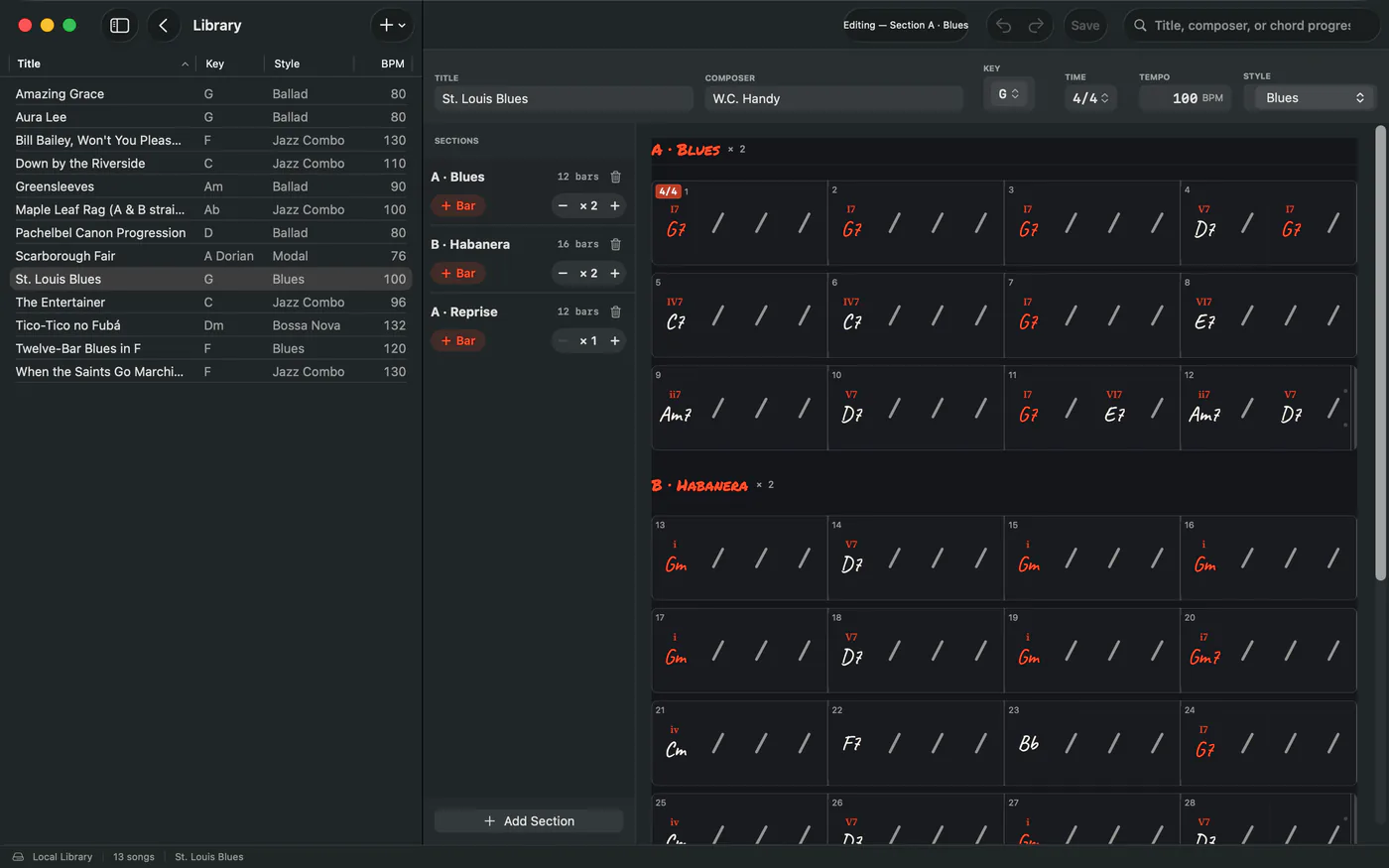
Tap a bar (or one beat of it) to edit it. The top shows the bar and its beats, so you can see what's on it and pick the beat you're changing. For that beat, choose Chord, Sustain (let the chord before it ring) or Rest.
Build the chord from the rows, or type it into the field (Cm7, F#m7b5, G7/B) and press return.
ROOT- The note letter, then ♮, ♯ or ♭.
TYPE- maj, m, dim, aug, sus2, sus4, 7, maj7, m7, m7♭5, dim7.
EXT- 9, #9, b9, 11, #11, 13, b13, and alt.
BASS- A different bass note for a slash chord, or none.
More — markers · time · ending- Road-map markers, the bar's time signature and 1st and 2nd endings. See Repeats, endings and the road map.
Clear bar/Remove bar- Empty the bar, or take it out.
Pick a new key from the Key menu (major, minor, or Other modes for Dorian, Phrygian, Lydian, Mixolydian and Locrian) and every chord moves with it: C Am F G in C becomes G Em C D in G. It moves by the key's root note, so going from C to Am moves every chord up to A, and going from C to Cm leaves them where they are. One undo puts it all back. A song with no key is treated as if it were in C, so if yours was written in another key, set that key first, then change to the one you want.
Undo and redo are in the toolbar. Your changes are kept when you tap Save, which lights up whenever there's something to save (⌘S on the Mac).
Related
- Repeats, endings and the road mapRepeat a section, add 1st and 2nd endings, mark D.S., D.C., Coda and Fine, and the player follows the way you'd read it.
- Play alongThe chart, a backing band, fingering diagrams for this chord and the next, and a mixer. Tap a bar to jump there.
- Leganote on the MacA Mac app of its own: a sidebar, a sortable song table, a real menu bar and the shortcuts you'd expect.
Still stuck? Write to zhi@nonoaudio.com. Support page