
Leganote on the Mac
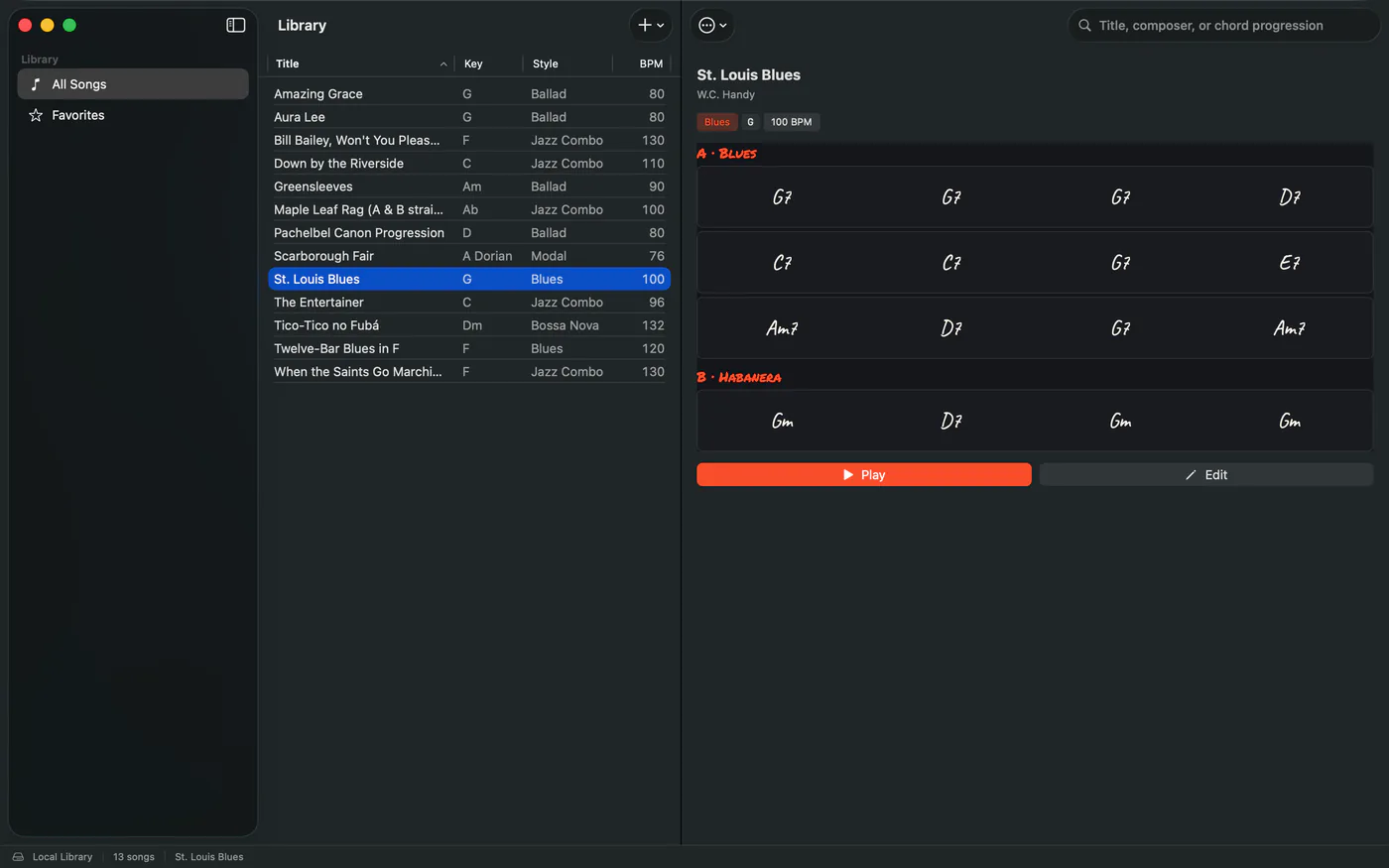
A Mac app of its own: a sidebar, a sortable song table, a real menu bar and the shortcuts you'd expect.
Leganote for Mac is a separate app on the Mac App Store, bought once, with everything included: no Pro to unlock and no song limit. It needs macOS 14 or later. It isn't part of the iPhone and iPad purchase, but it reads the same Leganote folder in iCloud Drive, so your library is the same on all of them.
The window has three columns: the sidebar (All Songs, Favorites), the song table, and the song itself. Click a column heading (Title, Key, Style, BPM) to sort. Double-click a song to play it, or to open a PDF. The status bar along the bottom shows where the library lives, how many songs it holds and what's playing. File ▸ New Window (⌥⌘N) opens a second window, for two charts at once.
Play, Edit Chart (or Open PDF), Add to Favorites, Duplicate, Export as PDF…, Export as MusicXML (.mxl)…, Print… and Delete…. ⌫ deletes the selected song too. It asks first, because deleting a song removes it from every device.
In the player and the editor, right-click a chord and choose Voicings for… to pick another fingering. Space plays and pauses, and ← and → step a bar back or forward.
| Menu | Command | Keys |
|---|---|---|
| File | New Song | ⌘N |
| File | New Window | ⌥⌘N |
| File | Import ▸ ChordPro… / MusicXML… / PDF… | |
| File | Export as PDF… | ⇧⌘E |
| File | Export as MusicXML ▸ Compressed (.mxl)… / Uncompressed (.musicxml)… | |
| File | Print… | ⌘P |
| File | Page Setup… | ⇧⌘P |
| File | Save | ⌘S |
| View | Find | ⌘F |
| View | Show Fingering Diagrams | |
| Song | Edit Chart | ⌘E |
| Song | Back | ⌘[ |
| Playback | Play / Pause | ⌘↩ (Space in the player) |
| Playback | Enable Loop / Disable Loop | ⌘L |
| Playback | Previous Bar / Next Bar | ← / → in the player |
| Practice | Reset Tempo | |
| Editor toolbar | Undo / Redo | ⌘Z / ⇧⌘Z |
Leganote ▸ Settings… (⌘,) has the appearance, language and fingering-diagram settings. Reading PDFs on the Mac is covered in PDF charts.
Related
- Write a chartSections, bars and chords: tap a bar, build the chord, save. Changing the key moves every chord with it.
- PDF chartsA light reader for charts you didn't write yourself. Write on them on iPhone and iPad, with Apple Pencil or your finger.
- iCloud and your filesYour songs are files in your own iCloud Drive. Apple syncs them; there's no Leganote server and no account.
Still stuck? Write to zhi@nonoaudio.com. Support page