
Themes and settings
Six themes, the measurement defaults, calibration, and three Shortcuts.
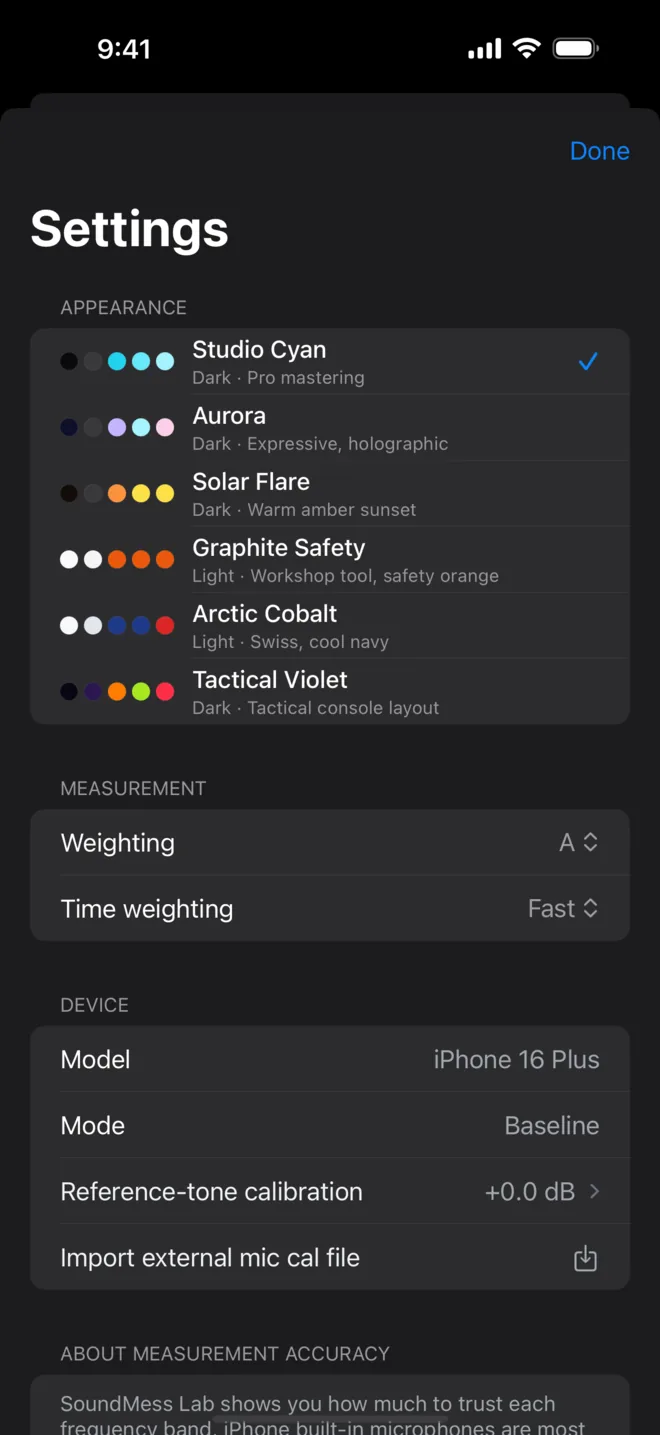
Settings is the gear at the right of the top row. From top to bottom:
Appearance- The theme. See below.
MeasurementWeighting(A, C, Z) andTime weighting(Slow, Fast, Impulse). See Sound level.Device- Your model, the current
Mode(Baseline or Calibrated, and whether a trim is on),Reference-tone calibrationand the external mic file. See Calibration. About Measurement Accuracy- What a phone microphone can and can't do. See How far to trust it.
HelpReset coach marksbrings back the two first-run pointers (iPhone only);Recordingsopens the recordings list.App- The version and build number, handy when you write in.
Studio Cyan- Dark · Pro mastering. The default: black with electric cyan.
Aurora- Dark · Expressive, holographic. Violet and pink over a deep purple glow.
Solar Flare- Dark · Warm amber sunset.
Graphite Safety- Light · Workshop tool, safety orange.
Arctic Cobalt- Light · Swiss, cool navy.
Tactical Violet- Dark · Tactical console layout. Pro.
Each theme recolours the whole app, charts included, and brings its own spectrogram palette. The first five are free.
Tactical Violet is part of Pro, and it changes more than colour: every screen gets its own console layout, with Japanese labels and small English captions. Without Pro it wears an orange lock; tap it to try the theme for 15 seconds, once each time you open the app. A countdown runs at the top, and when it ends the Pro sheet opens and your own theme comes back.
SoundMess Lab adds three actions to the Shortcuts app and to Siri. Each one opens the app:
- Show Real-Time Analyzer: opens with the RTA selected. "Show RTA in SoundMess Lab".
- Start Recording: starts a new recording (Pro). "Record with SoundMess Lab".
- Play Pink Noise: starts the pink-noise generator (Pro). "Play pink noise with SoundMess Lab".
SoundMess Lab collects no data. The microphone is analysed on the device, and audio is only written to disk when you start a recording. There is no account and no cloud; see the privacy policy. If something isn't clear or isn't working, Support is one message away.
Related
- How far to trust itPhone microphones are good in the middle and unreliable at the ends. SoundMess Lab shows you which is which.
- CalibrationTrim the level against a 94 dB reference, or load your measurement mic's own calibration file.
- QuestionsAccuracy, Pro, recordings and privacy, and what to check when something isn't working.
Still stuck? Write to zhi@nonoaudio.com. Support page